![2. Motivati symbol.png]](https://hjelp.motivati.no/hs-fs/hubfs/2.%20Motivati%20symbol.png?height=40&name=2.%20Motivati%20symbol.png)
Find the employee in the menu “my employees”, select department and click on the employee's name.
- Select the survey you would like to see.
- Select a report part you would like to see (for example motivation analysis or additional questions)
- Click “Report”
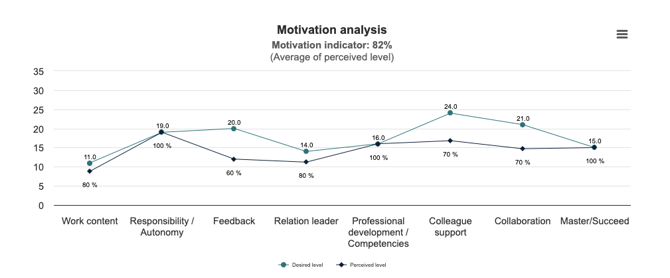
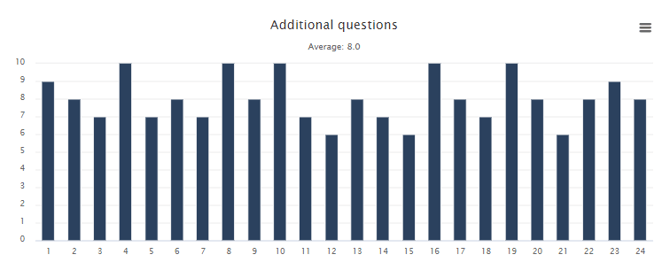
Choose between horizontal and vertical view of the bar chart at the top
- In vertical view, the questions will be on the left side of each bar
- In horizontal view you can move the mouse over the bars and bring up the question (they will also be below the diagram)
Compare different results / track development over time:
As a manager, you can also compare different results—for example, you can view an employee’s motivation analysis from 2025 and 2026 in the same view.
This allows you to track development over time and see how the results have changed.
When viewing a result, click “Compare” and select the results you want to compare.

Compare results (at individual / department / organizational level) and get overall reports